Canvas
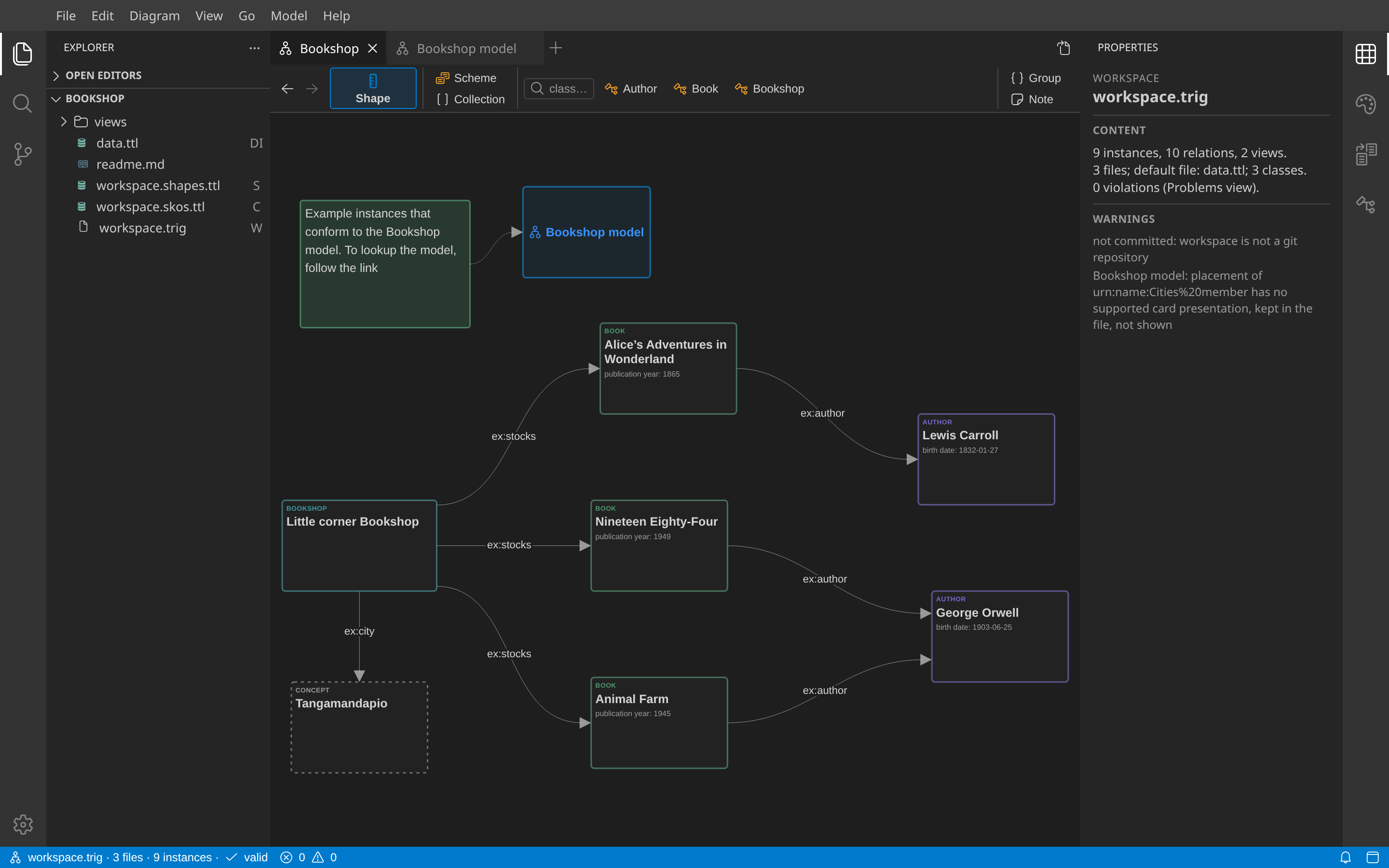
The canvas is where you author. It shows one view: a set of placed elements of the model and the lines between them. You create elements with the palette, connect them with the halo of a card, and edit their fields in Properties.
Views
A view is one *.view.trig file with one named graph. It holds the placements of model elements: position, size, color. A placement never asserts a model statement. Several views can show the same element, and a change in one shows in all.
- Create a view: Model → New View, the + after the editor tabs, or New View on a folder of the Explorer. Type the name of the view file. The view opens with the base name of the file as its label. Rename it later (F2, or Properties): the file name stays.
- Duplicate a view: Duplicate View in the view actions. The copy opens as the label plus " copy".
- Open a view: select its file in the Explorer.
- Notes of a view: select the view to edit its Markdown Notes in Properties. The field saves when you leave it. Notes stay in the view file.
- In the browser, append
?view=<view-id>to the URL to open a specific view after startup.
Create elements
Use the palette above the canvas. From left to right: Shape (the large tile), Scheme and Collection, one tool per class with a target-class shape, and Group and Note for the view.
- A new node shape opens its name for edit. The typed name also sets the target class: the known class with that name, else a new class IRI from the name.
- A class tool creates an instance of that class and opens its name for edit.
- A note is Markdown. Double-click or F2 opens its editor. Ctrl+Enter commits, Escape cancels.
- A group is a frame of the view. It moves with its contents.
Place existing elements
- Press F8 (or Ctrl+T), type part of a label, type or IRI, and press Enter. The card goes to the pointer, or to the center of the canvas. Its relations to cards already on the view are placed too. Ctrl+Enter adds an element and keeps the picker open. Alt+Enter shows the element instead of adding it.
- Drag an element from the Model explorer or from Links onto a canvas. Drag a folder to place all its descendants.
- Drag a file from the Explorer onto a canvas to link to it.
Cards and lines
A card is the box of an instance, a node shape or a value set. A line is a relation between two cards. A relation to an element that the view does not show is a row of the card.
- Hover a card to show its halo: Open in, Remove, More actions, expand incoming and outgoing neighbors, and + to create an incoming or outgoing relation.
- + opens the list of predicates that the shapes allow. Select an existing element as the end, or type a name to create one.
- Drag a card to move it. Drag its corner to resize it. The view file stores the geometry.
- Collect combines several selected cards into one entity group with bundled lines. A member has no card of its own while it is in the group.
- Del removes the placement from the view. The model does not change. Ctrl+Del deletes the elements from the model, after confirmation.
- Change Class… in the context menu replaces the classes of the selected instances. Values that the new class does not describe show in Not in shapes.
Copy, cut, paste, duplicate
- Ctrl+C, Ctrl+X, Ctrl+V on a canvas. Paste shows the same elements in the target view and never creates instances. Ctrl+C also puts the Turtle of the selection in the system clipboard.
- Cut changes nothing until the paste: it marks the selection and dims it. A paste of the cut moves the elements from the source view in one undo step. Escape cancels the mark.
- Paste raw RDF text (Turtle, TriG, JSON-LD) to add missing statements and show their figures. Existing resource IRIs stay unchanged. Named graphs require confirmation before the paste discards their graph names.
- Copy as RDF in Edit or the context menu copies readable Turtle of the selection, without placement metadata.
- Ctrl+D duplicates the selected elements beside the sources with a numbered label.
Layout and edges
- Diagram → Apply Layout: Layered or Force. The view then fits to its content. Apply Layout removes the bends of edges.
- Edge style is a preference: Curved (default) or Direct. Nothing routes around cards. To route an edge around a card, drag the line: a bend follows the pointer. Double-click a bend to remove it. Reset route in Appearance removes all bends.
- Parallel edges use separate lanes. A self edge without bends is an arch above the card.
Selection
A window has one selection. You make it on a canvas or in a panel list (Model explorer, Outline, Problems).
- A click on a canvas selects in that canvas only. Other canvases that show the same elements highlight them. A highlight is not a selection.
- A selection in a panel list highlights its elements on each canvas.
- Ctrl-click or Shift-click on a canvas with a highlight starts from the highlight: the click adds the element, or removes it when it is highlighted.
- A canvas tab behind another tab does not update. It updates once when you show it.
Presentations of a file
Every model RDF file offers Source and Model. A view also offers Canvas. The workspace file also offers Settings. Use Open as… in a pane toolbar, or Open as… and Open beside… in a context menu. Ctrl+click Open as… (Cmd+click on macOS) opens the presentation beside the current pane.