Properties and the side panels
The right area holds the panels that describe the selection. The bottom area holds the lists of the model: Problems, Outline and Trace.
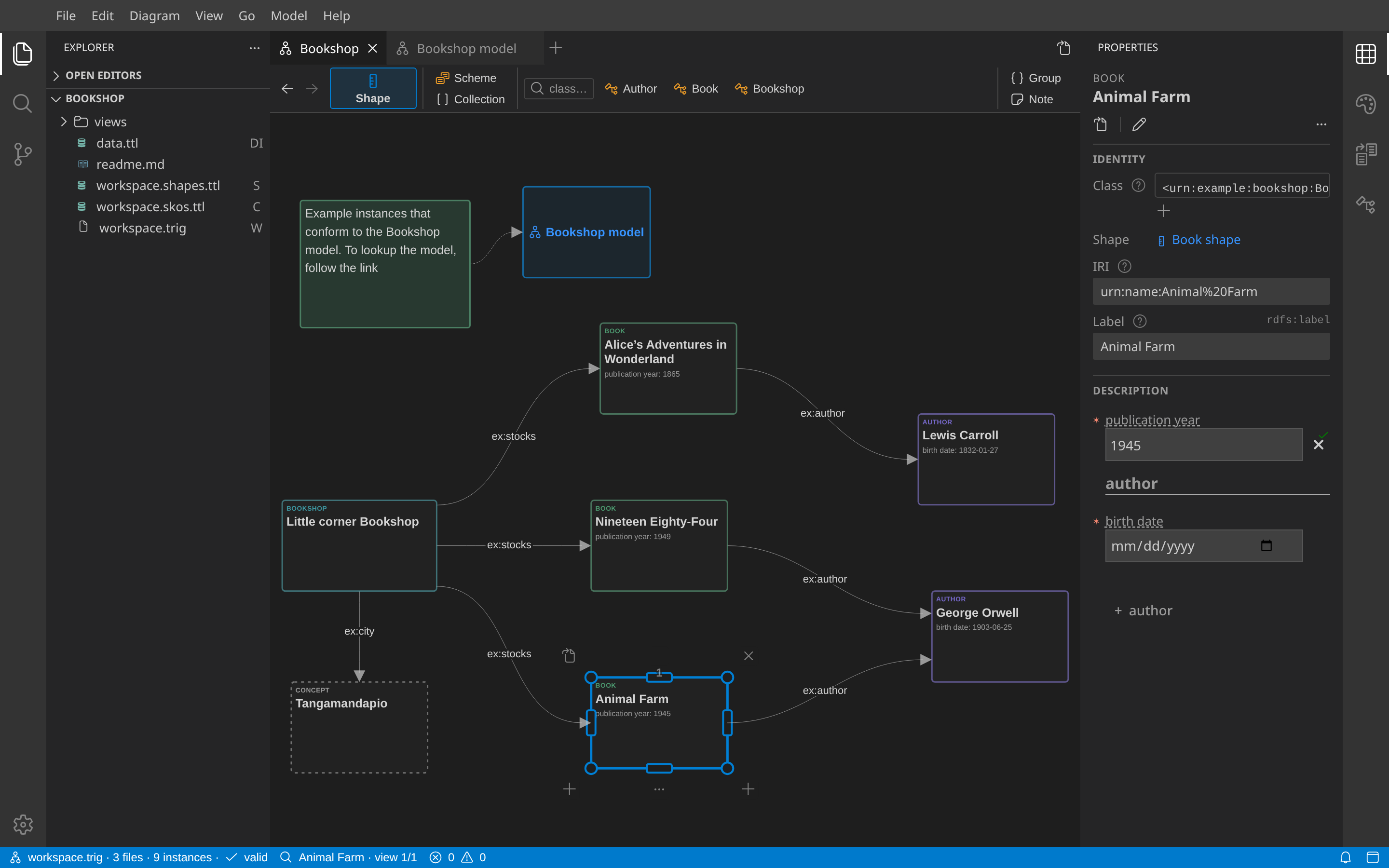
Properties
Properties shows a form for the selected element. The fields come from all applicable shapes, and from the RDFS domain and range of its classes. A shape can apply to a node that fails its constraints.
- Identity: the classes of the instance (× removes one, + adds one), the shape, the IRI and the label.
- Description: one field per property of the shapes. A red asterisk marks a required field. A check or a cross next to a field shows its validation state. A field saves when you leave it.
- Not in shapes: values of the instance that no shape describes.
- Locked: the locked files that hold statements of the instance. Locked values show as plain text.
- The action toolbar has Open in, Rename and a More actions menu with the actions of the element.
For a view, Properties edits its label and its Markdown Notes. Click the external-link icon of Notes to edit them in the text editor beside the diagram. For a node shape, Properties edits the target class, the targets by predicate (Target subjects of, Target objects of, one predicate per line), the node constraints and the description. For a property shape, it edits the path, the range, the cardinality, the name and the description.
RDFS domain and range
Classes with rdfs:domain and rdfs:range statements also supply fields, without a shape. A property with a class range gives links to instances of that class. No range, rdfs:Resource and owl:Thing accept any value.
Appearance
- Style of the selection: color, display, size, edge sides, route, visibility.
- View: Apply Layout, spacing, hidden edges.
- Preferences: text sizes, edge style.
Links
Links shows the statements of the selected element: Instances (for a selected node shape), Instances (rdf:type), Views that show it, Outgoing and Incoming statements, and Ends. A folder shows only when it has rows. Drag a row onto a canvas to place it.
Outline
Outline lists the frames, cards and placed relations of the active view. A click selects on the canvas.
Problems
Problems lists the SHACL results of the validation mode of the workspace. A click selects the focus instance. The status bar shows the counts.
Trace
View → Trace shows what the backend runs: requests, edits, change events, view refreshes, validation, SPARQL queries and file writes. It records only while the panel is visible. Use it for a performance check:
- Open View → Trace.
- Select Clear before an operation.
- Select, delete, move or undo on a test workspace.
- Read the metrics above Summary.
- Select Pause or hide Trace to stop recording.
| Metric | Meaning |
|---|---|
| First model update | Model input to visible DOM change, plus two animation frames. |
| Backend event-loop delay | Timer lateness at 50 ms intervals, including OS scheduling delays. |
| RPC count | Completed reads and mutations of the model service. |
| RDF query time | SELECT, CONSTRUCT and pattern-match time, counted once per query. |
| Full-view reads | Complete view reads during recording. |
Compare repeated runs with the same workspace and panel layout.