2. Import a file
A draft often refers to things that exist already: a vocabulary, a list of codes, an ontology. You import such a file. Catenary copies it into the workspace and locks the copy. You can refer to its elements, but you cannot change them.
This step imports a SKOS scheme of cities. Save this text as cities.ttl outside the workspace:
@prefix skos: <http://www.w3.org/2004/02/skos/core#> .
@prefix cities: <http://example.org/cities#> .

cities:Cities a skos:ConceptScheme ; skos:prefLabel "Cities" .
cities:Tangamandapio a skos:Concept ; skos:prefLabel "Tangamandapio" ; skos:inScheme cities:Cities .
cities:Macondo a skos:Concept ; skos:prefLabel "Macondo" ; skos:inScheme cities:Cities .
cities:Comala a skos:Concept ; skos:prefLabel "Comala" ; skos:inScheme cities:Cities .
Import it
- Select File → Import RDF Files….
- Select
cities.ttl.
Catenary writes a Turtle copy to imported/cities.ttl and locks it. The Explorer shows the new folder. The import adds the cities prefix to the workspace prefixes.
Place the scheme on the canvas
- Press F8 on the Main canvas.
- Type
Citiesand press Enter.
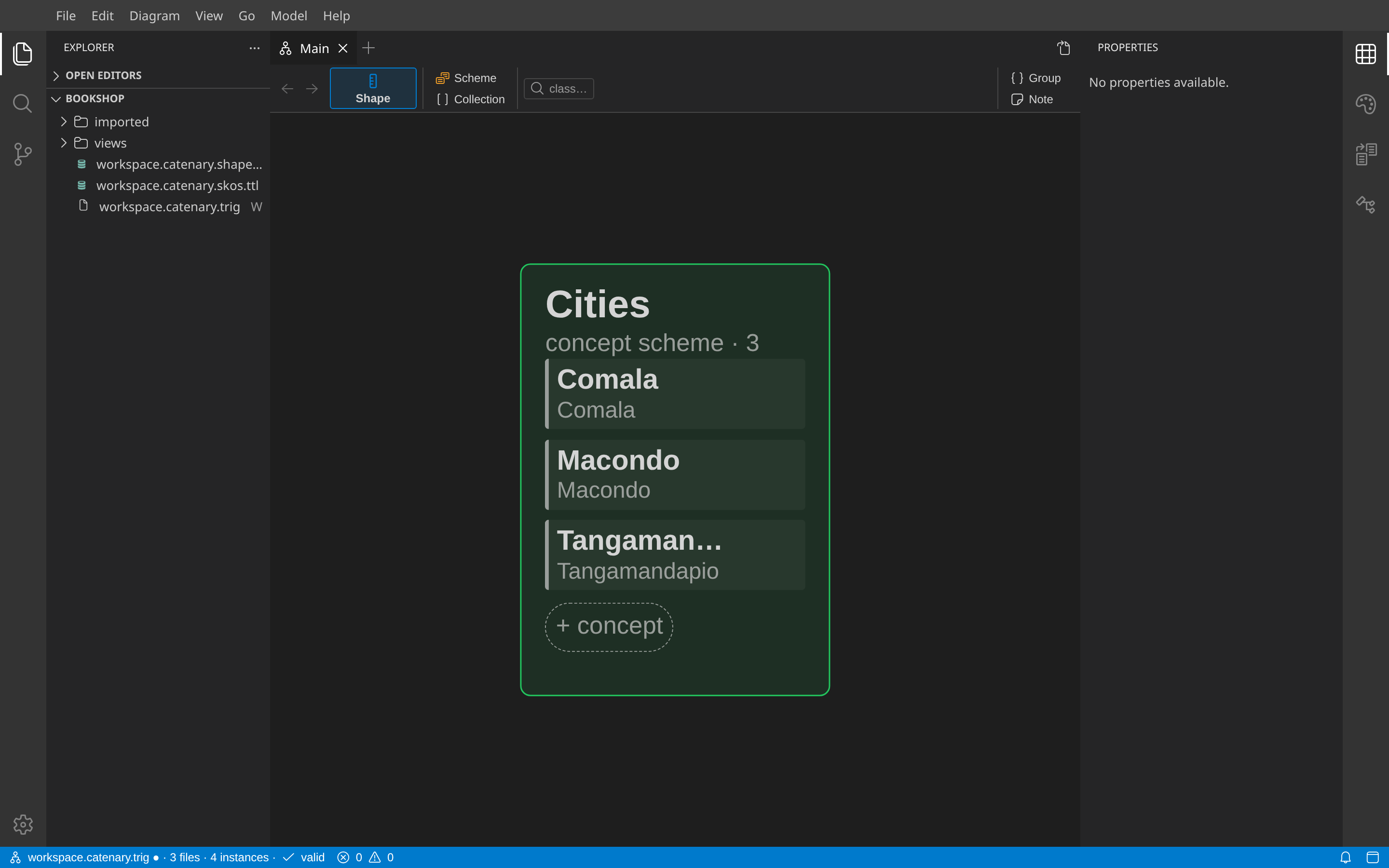
The scheme appears as a card with its three concepts.
A locked file is read-only. If you try to change one of its statements, Catenary asks whether to unlock the file. Statements that you add about its subjects go to your own files.
Or paste a snippet
Import is for files that you keep as they are. For a quick sketch, you can also paste RDF text straight onto a canvas: copy a Turtle snippet, click the canvas and press Ctrl+V. Catenary adds the statements to your files and places the new elements as cards. This is often the fastest way to start a draft from an example that you found somewhere.
Next: Draw the shapes.