6. Write it up
A Markdown file in the workspace is a document. It can show a view between its paragraphs, and the export writes the view as an SVG file.
A document with a view
- Right-click the workspace folder in the Explorer and select New File. Name it
notes.md. - Write a few lines. Put the cursor on an empty line.
- Right-click and select Insert View…. Select Books.
The editor inserts a Markdown image whose target is the IRI of the view:
markdown
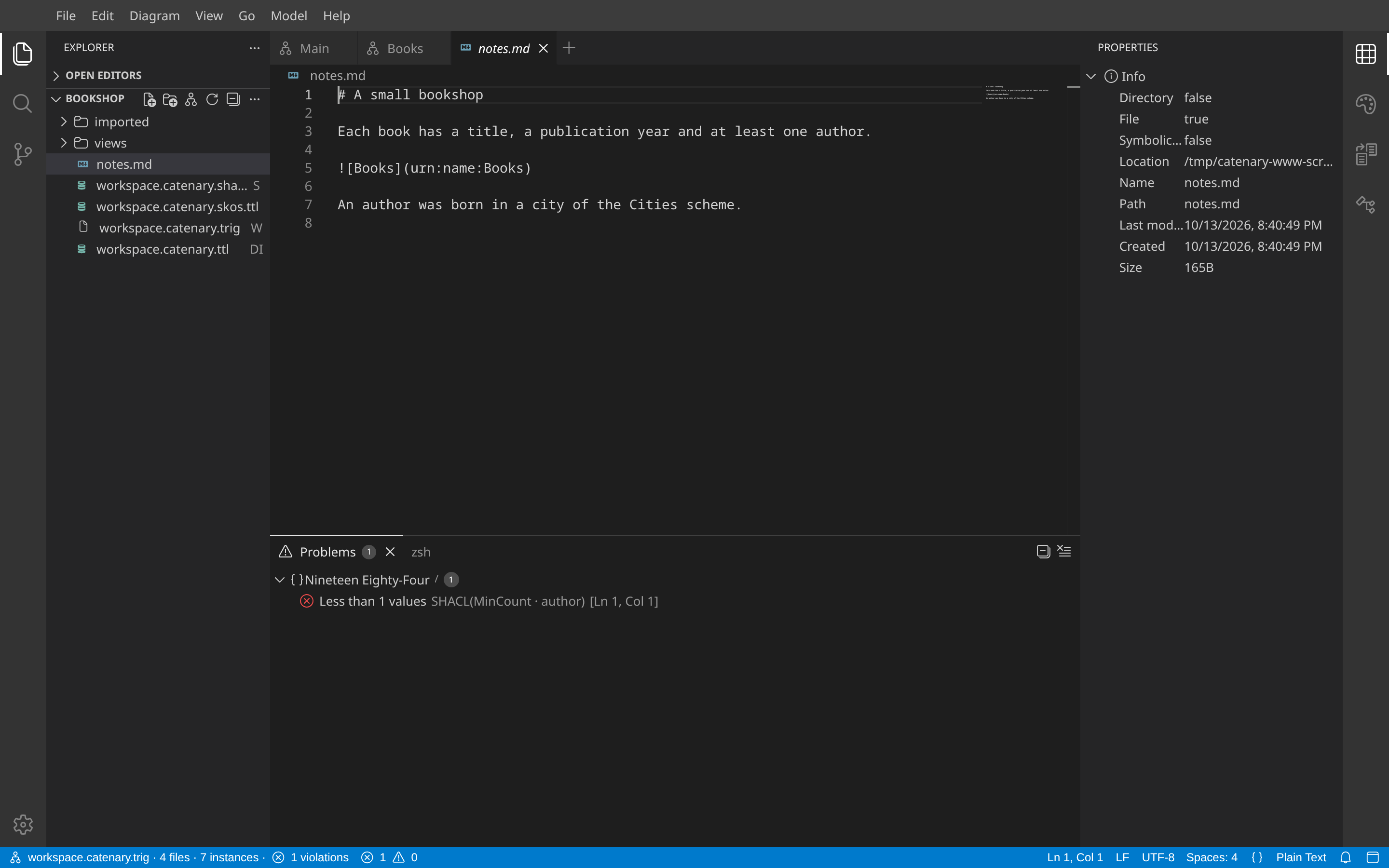
The IRI identifies the view. The text in brackets is only a caption, so a new view label does not break the embed.
Export
- Select
notes.mdin the Explorer. - Right-click it and select Export Markdown….
- Select Choose… and select a destination folder outside the workspace.
- Select Export.
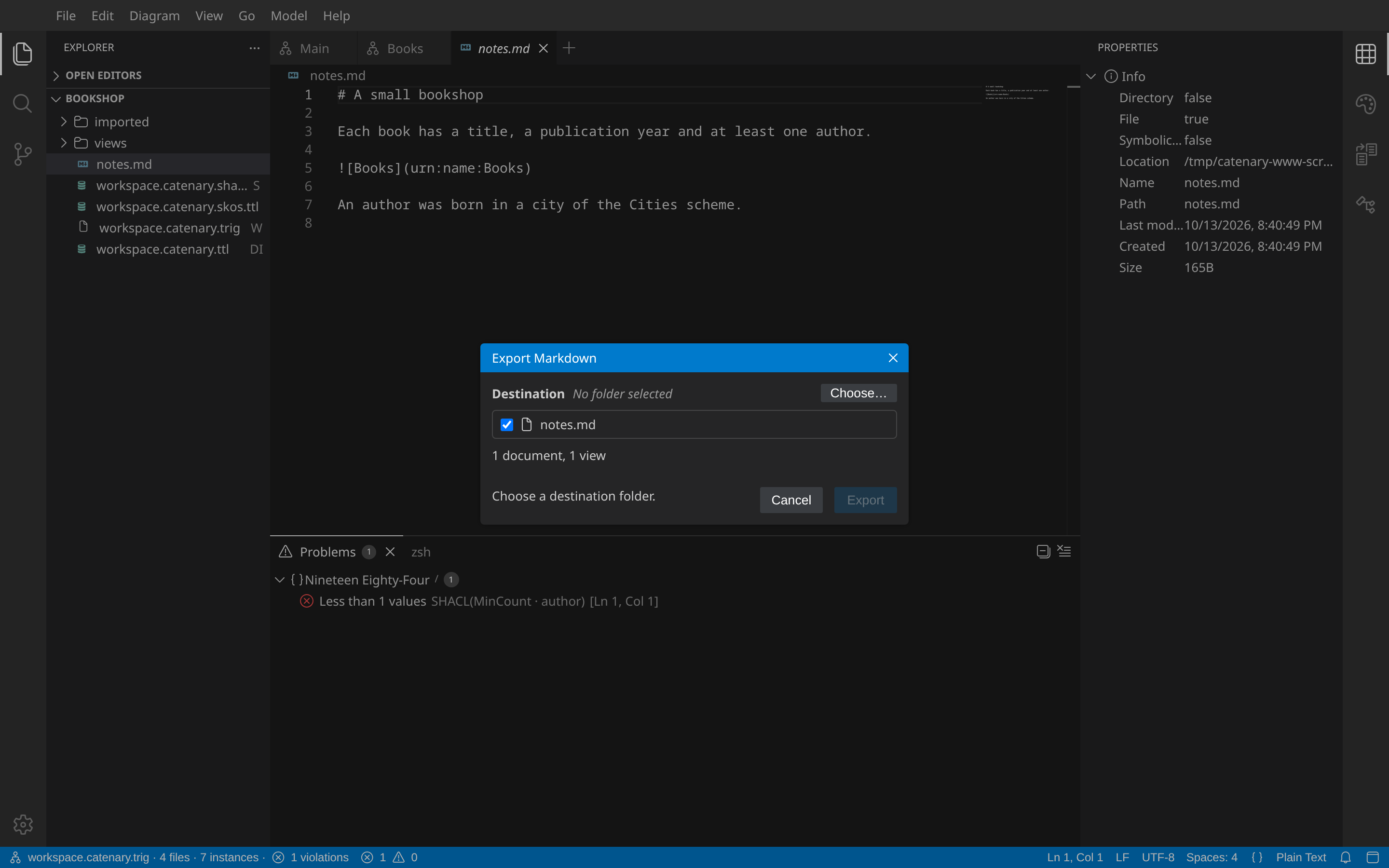
The export writes notes.md to the destination, with the embed replaced by an image link to _resources/Books.svg. The SVG shows the view at zoom 100 %, without selection or edit controls. A later export of the same files updates them.
You now have a document with a diagram that you can share, and a folder of RDF files that holds the model behind it. The reference describes each part of the screen in detail.